

About public feeds search

Public Feeds is an ever-growing collection of frequently updated content feeds on virtually any topic. Here, you can search for original content feeds from various content providers all over the internet.
You can search for any type of content: news, articles, blog posts, images, videos, podcasts, and more. You can also search for public feeds in your native language.
To use public feeds search you need to sign up for any of Feedigy membership plans.
If you already have a Feedigy account, you need to press Search public feeds in the left navigation sidebar:
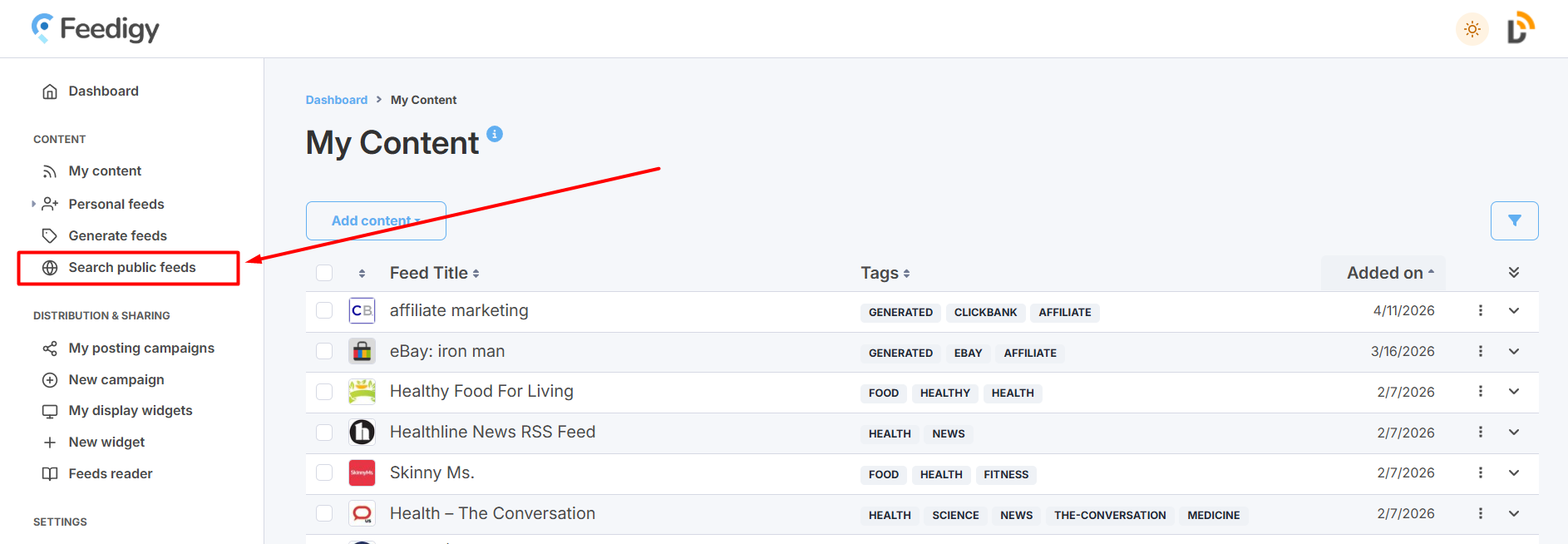
How to search for relevant public feeds
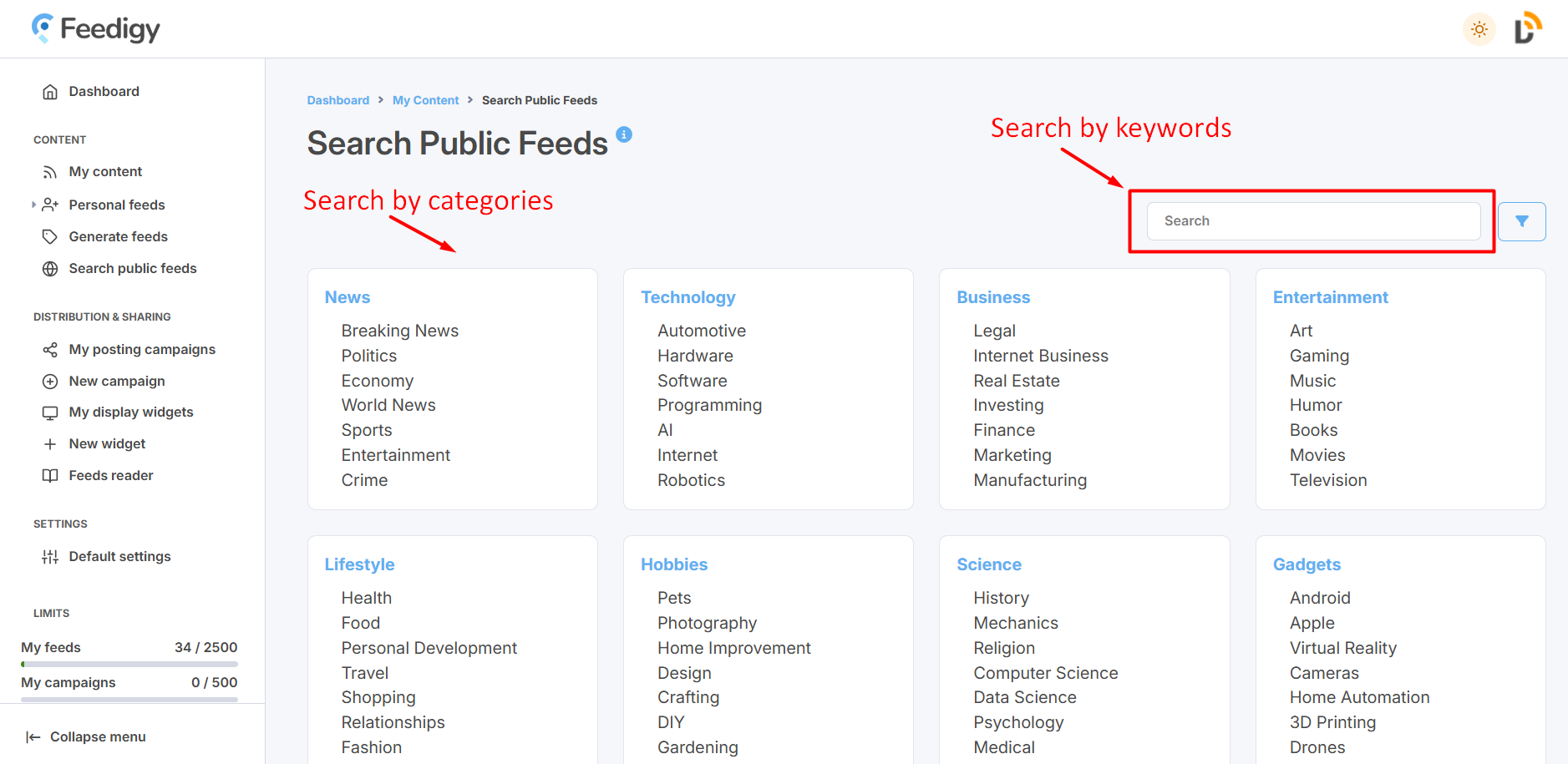
Enter your keyword or phrase into the search box. To search for public feeds in your native language, simply use your native language keywords.
Alternatively, you can search for feeds using the categories listed below the search box. Click on a category or sub-category name to run a search.
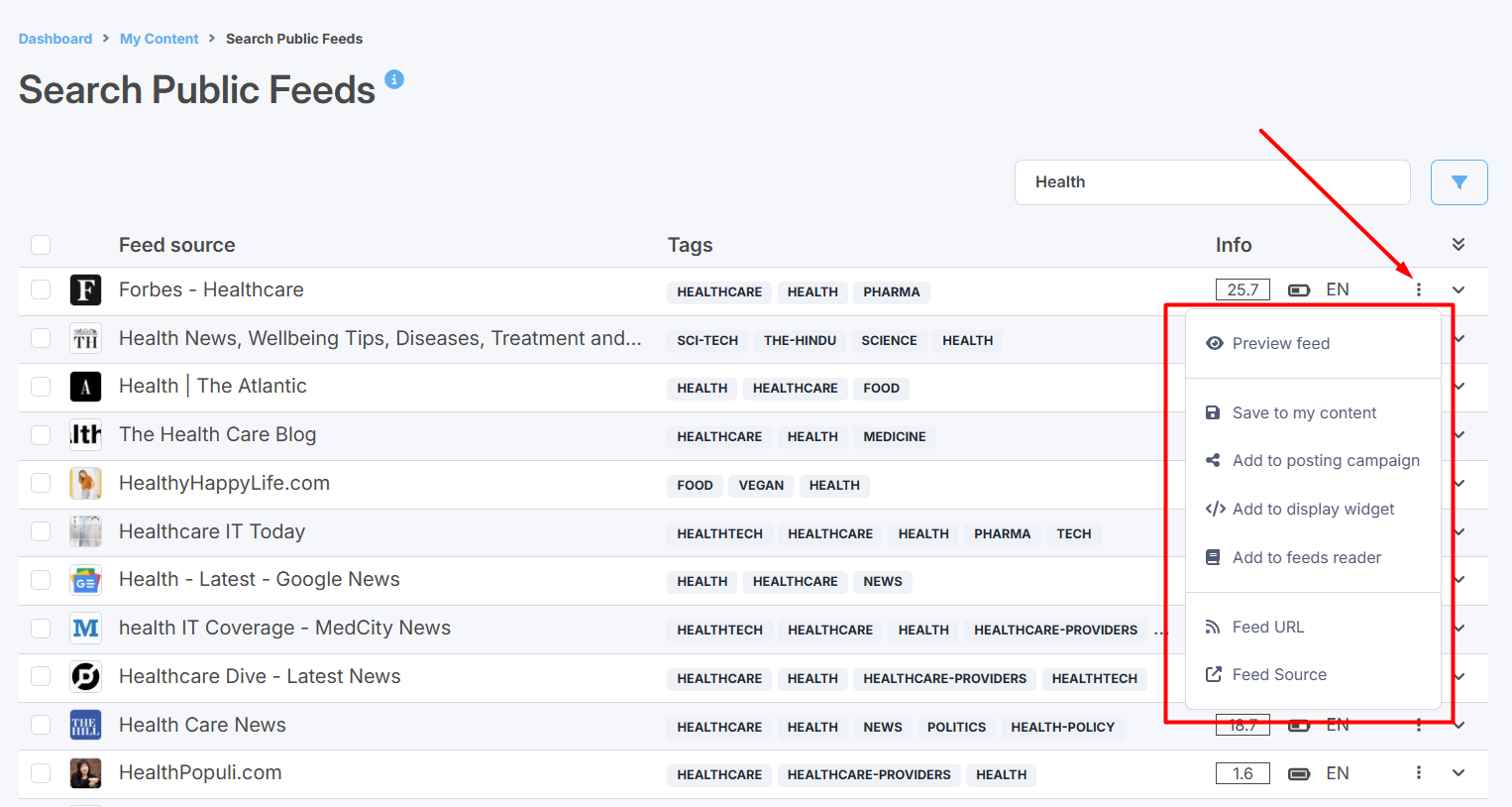
You will receive a list of the most relevant public feeds based on your search criteria. Click the three dots icon to initiate actions with the feed: Preview feed, copy Feed URL, go to Feed source:
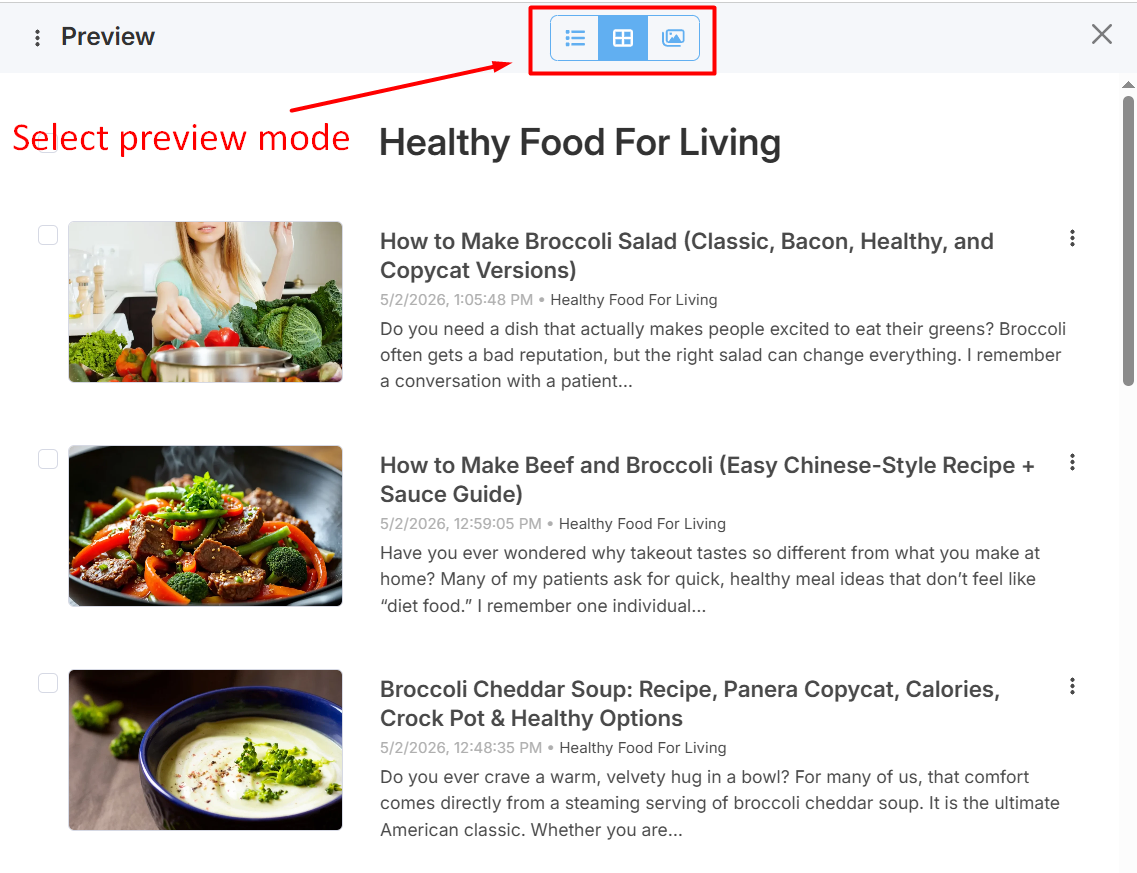
In Preview, you can choose one of the display modes: titles only, magazine, full view:
- Titles only mode - shows only the titles of the feed's items (news).
- Magazine mode - shows a digest (an image and a short description) of the latest news.
- Full view mode - shows all available information for each item.
^ to the top
How to filter search results
By default, you will see a list of the 25 most relevant public feeds in your search results. Click on Show more to load another batch of related feeds. You can also use the Filter option to set exactly how many search results you would like to display. You can view up to 200 relevant feeds per search query.
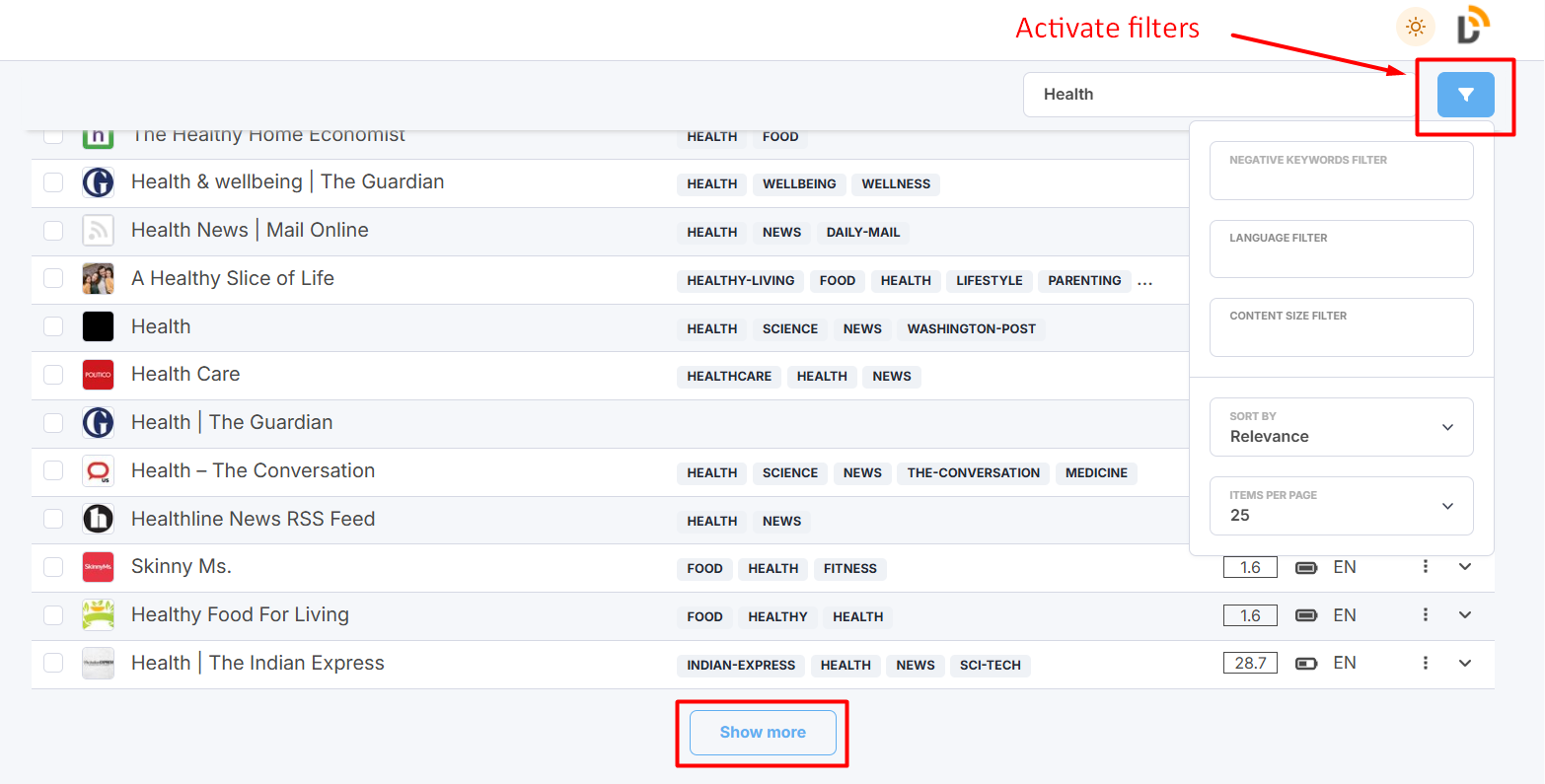
Each public feed has its quality indicators. Pay attention to the Info column:
- Updates frequency - shows an average number of updates per week.
- Content size - shows if the feed contains full articles or just summaries.
- Language - shows the original language of the feed.
- Content type - shows the type of content in the feed: articles (text), videos, podcasts, or else.
Use the Filter option to sort and filter public feeds by each indicator.
Also, you can filter search results by negative keywords. Specify one or several negative keywords in the Filter. All feeds that mention at least one of the specified keywords will be removed from search results.
You can select up to 10 public feeds at a time to use for your content needs. Select the feeds and press WITH SELECTED.
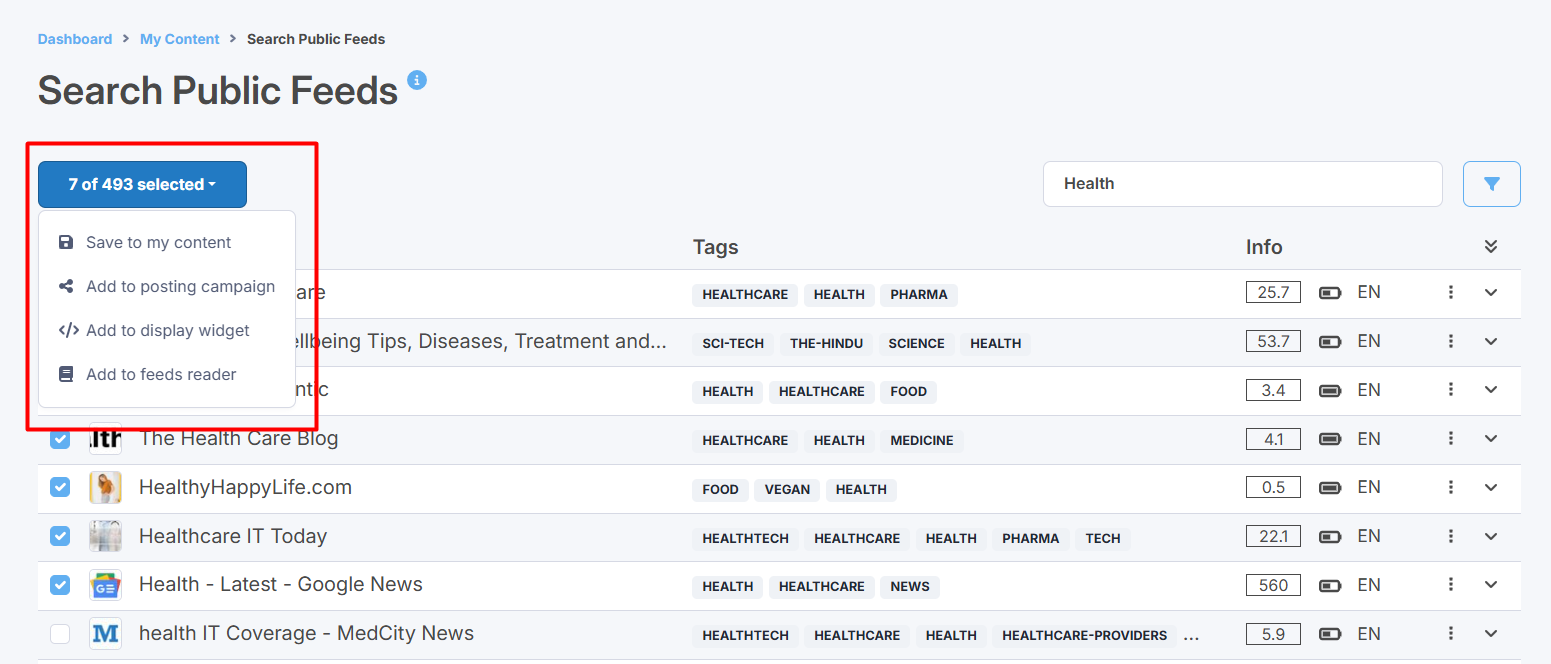
You have several options:
- Save to my content - simply save selected public feeds to My content vault.
- Add to posting campaign - add selected public feeds to an existing posting campaign or create a new campaign to start sharing content from these feeds to your blogs and social media.
- Add to a display widget - add selected public feeds to an existing display widget or create a new display widget to add a content block with to your website or blog.
- Add to feeds reader - add public feeds to your Feeds Reader to start following the latest updates or for further research.
Note: whatever option you choose, your selected public feeds will be automatically saved to your Feeds Box anyway.