

Each affiliate feed contains a list of targeted products based on your search queries and filters. Each product in the feed has an order button with a link to a sales page with your affiliate ID embedded.
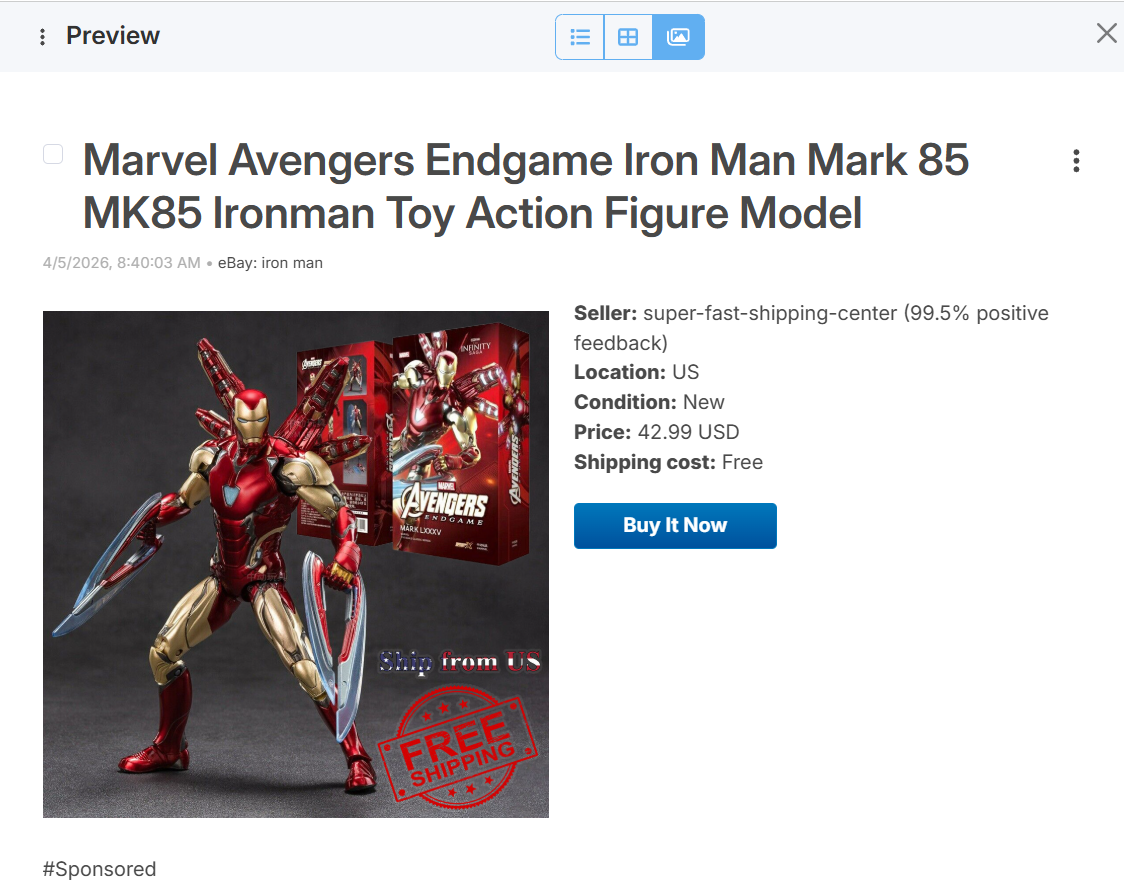
Order buttons and links have default styles and can be used as they are. However, you have the option to customize their appearance.
This can be useful if you wish to adjust the order buttons to match your website's design, make them more noticeable, or even remove them entirely.
Each affiliate feed generator has an advanced setting option: "Order" button CSS.
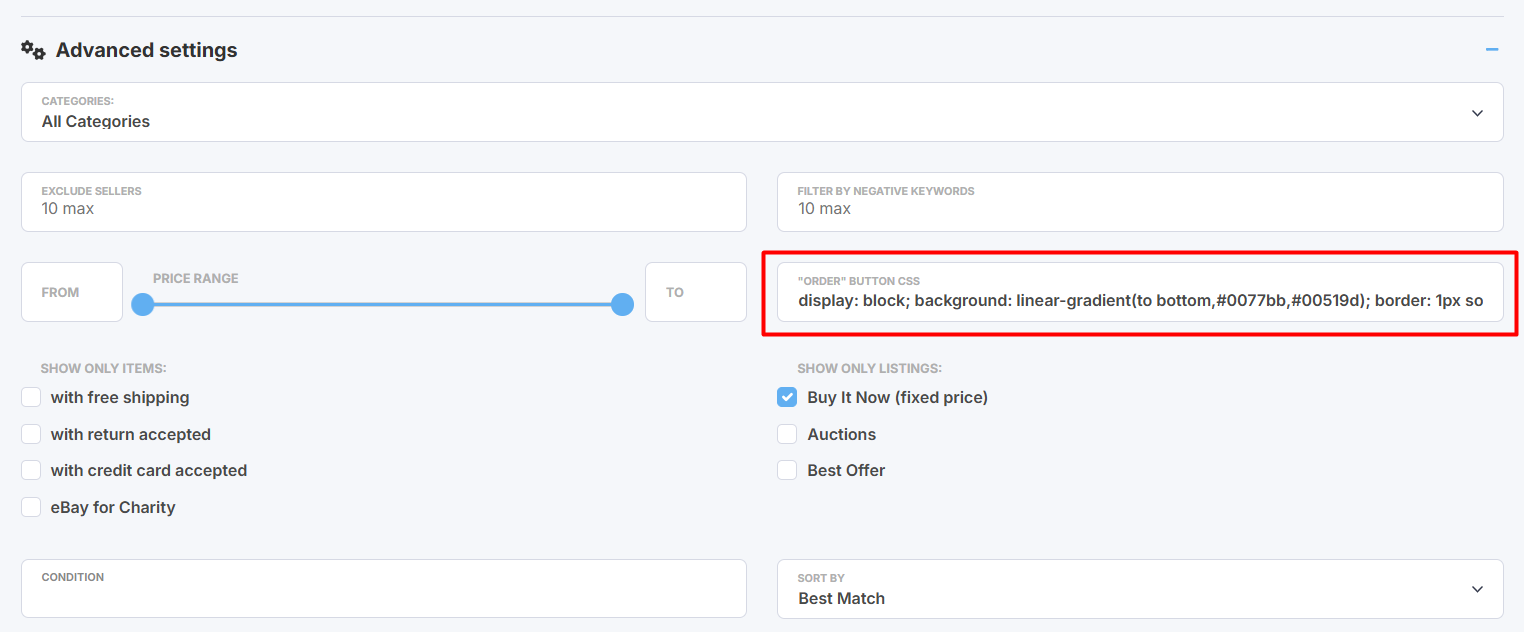
This option shows the default inline CSS styles for the order button and link. You can edit them, or alternatively, you can remove them completely and use your own corresponding CSS classes in the feed to style the button within your website's CSS: .btn-buy {...}
Note: Before you make any changes, please make sure you understand how it works. Edit this option at your own risk.
If you wish to use your own styles, you need to add them to this option and also to the CSS on your own website.
Each affiliate generator has its own styles:
.btn-buy.amzn { ... } - Amazon feeds
.btn-buy.ebay { ... } - eBay feeds
.btn-buy.cjaff { ... } - CJ Affiliate
.btn-buy.bestbuy { ... } - Best Buy
Each button has a link to a product page and it can also be customized:
.btn-nfo.amzn { ... }
.btn-nfo.ebay { ... }
.btn-nfo.cjaff { ... }
.btn-nfo.bestbuy { ... }
Also, you can customize div container for button and link:
.div-bar-btns.amzn { ... }
.div-bar-btns.ebay { ... }
.div-bar-btns.bestbuy { ... }
.div-bar-btns.cjaff { ... }
To hide / remove the buttons from the feed:
.btn-buy {
display: none;
}
To hide / remove both buttons and links
.div-bar-btns {
display: none;
}