


Keyword-based Feeds generator allows you to search for quality content from several popular content providers using targeted keywords, usernames, channel IDs, and more. Search results are provided as original, self-updating content feeds.
To use the Keyword-based Feeds generator, you need to sign up for one of the Feedigy membership plans
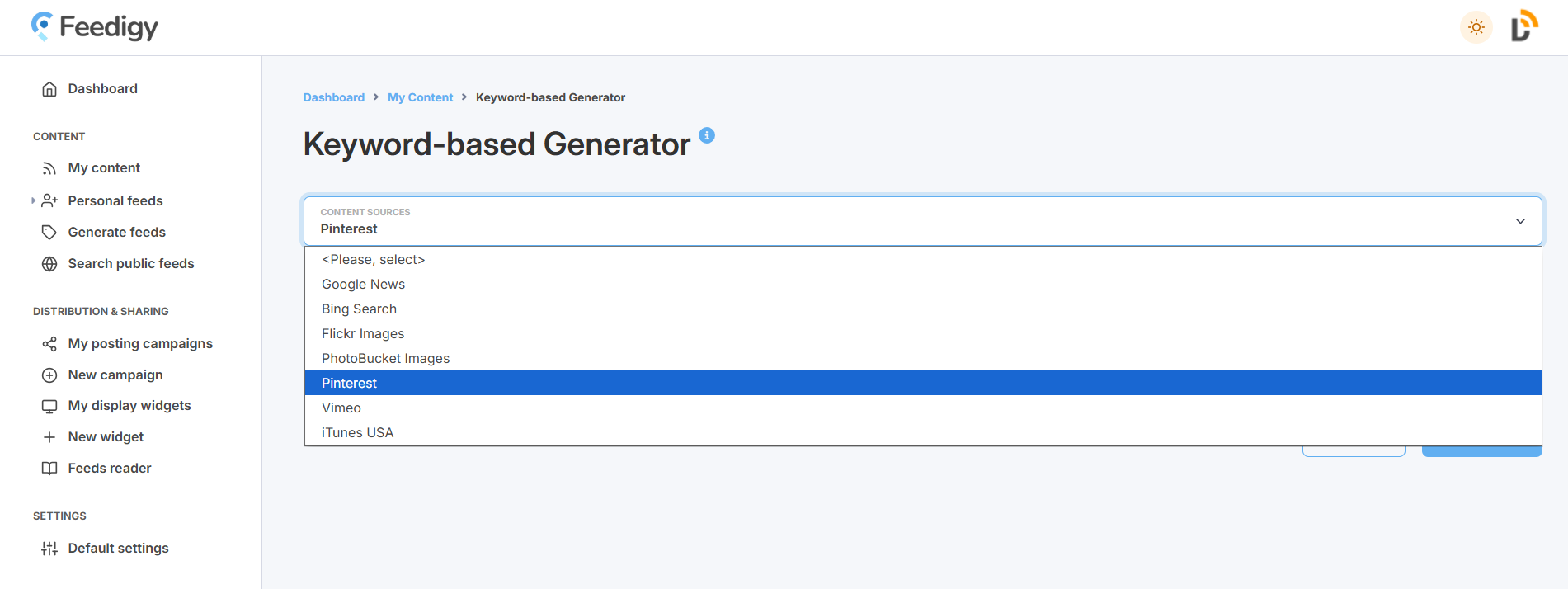
If you already have a Feedigy account, you need to press Generate feeds in the left navigation sidebar and select a content source (Google News, Bing search, Flickr images, PhotoBucket images, Pinterest, Vimeo, iTunes:
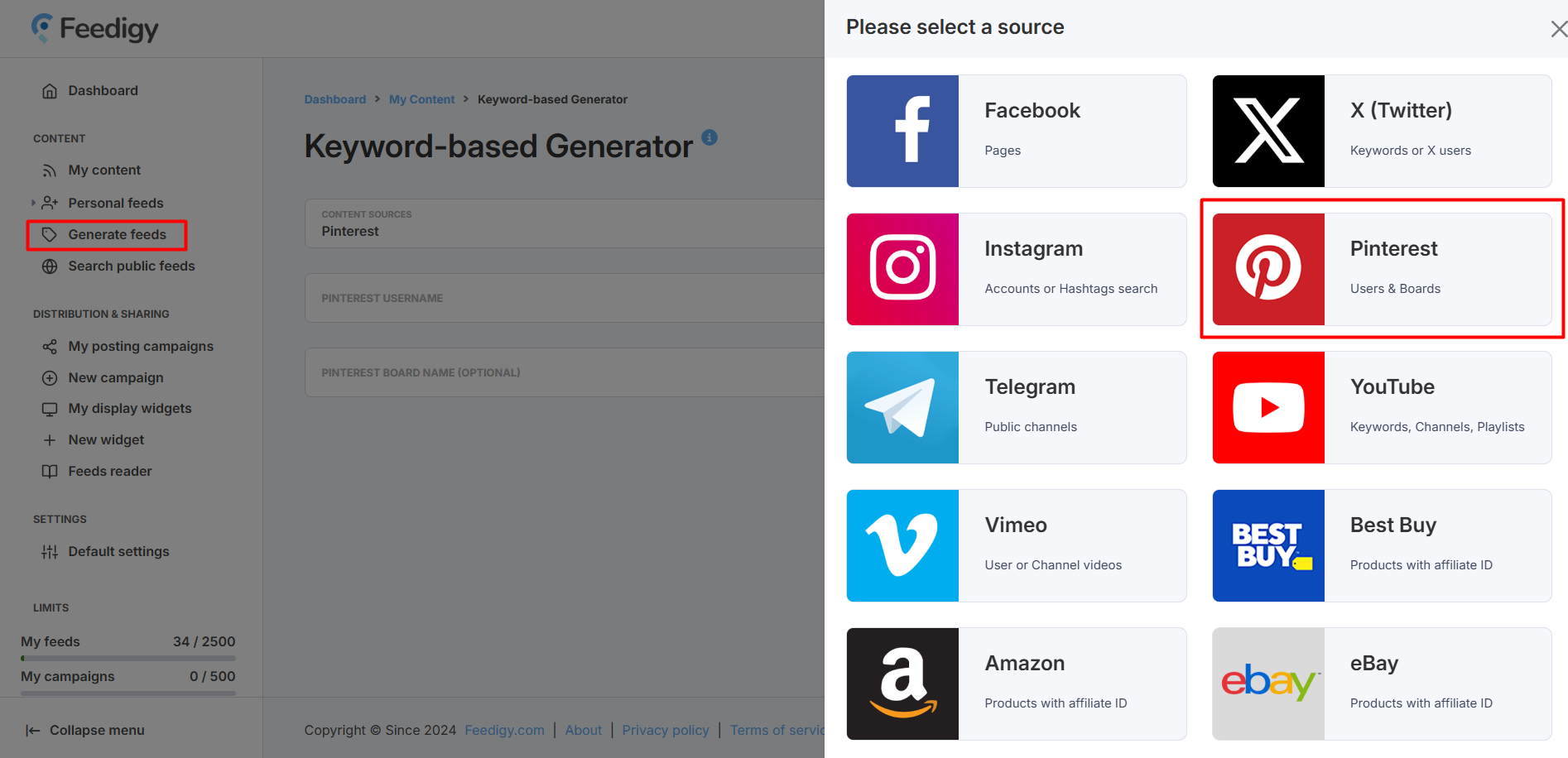
Generating content feeds
First, specify a content source using the dropdown menu. Please note that you can only use one content source at a time.
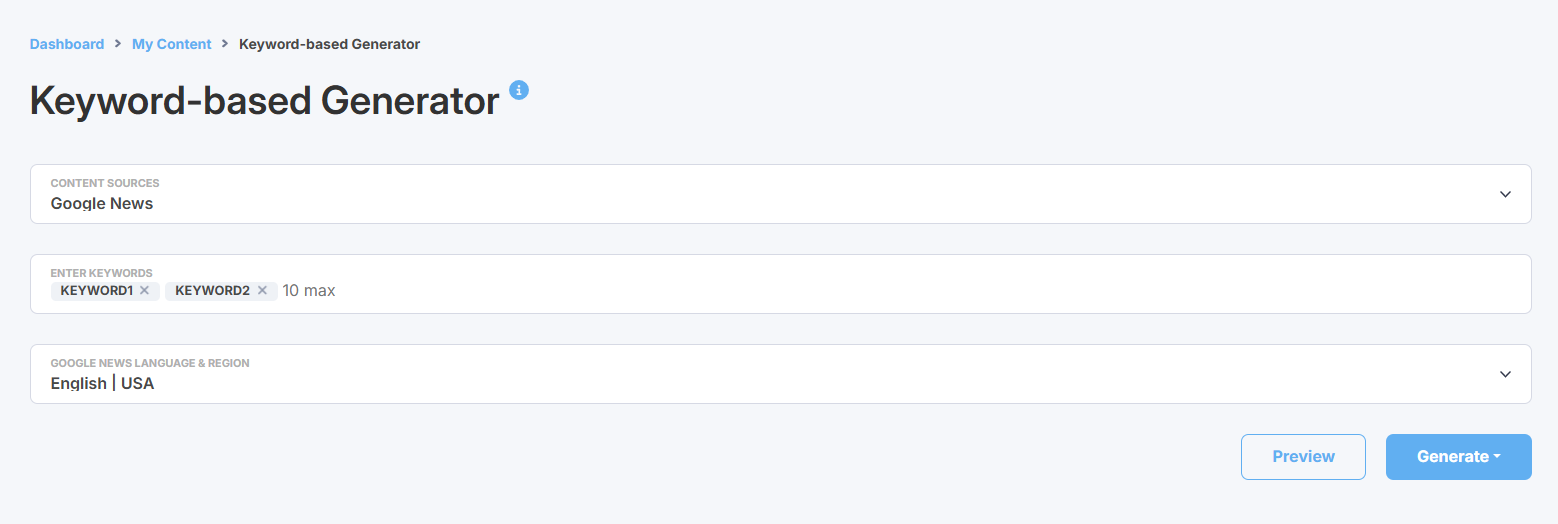
Google News
To generate Google News feeds, you can specify not only your keywords but also your specific language and regional preferences.
When you choose Pinterest as a content source, you have the option to specify any Pinterest user, including your own account. For a more targeted search, you can also specify a specific Pinterest board name that belongs to that user.
Vimeo
You can generate content feeds containing videos from a specific Vimeo user or channel. Multiple usernames or channels can be entered at once, and a separate feed will be generated for each one.
iTunes (USA)
You can generate iTunes feeds featuring various media content (currently limited to the USA locale). Choose the type of media content and apply additional sorting to target your resulting feed. You can also filter by maturity rating: selecting "Explicit = Yes" will include mature-rated media content in your feed.
Before you generating your feed, please use the Preview option to make sure your feed displays products relevant to your search.
Also, you can specify tags for your feed that will appear in the My content table where all your generated feeds are automatically saved. This will help to search or filter your feeds there.
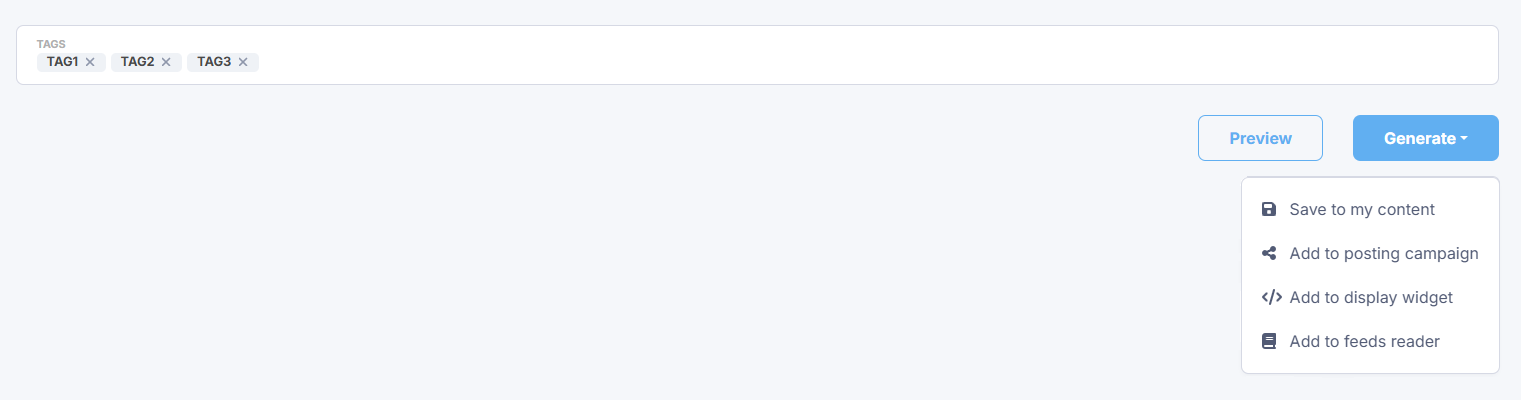
Press the Generate button. You have several options:
- Save to my content - simply save the feeds to My content vault.
- Add to posting campaign - add the feeds to an existing posting campaign or create a new campaign to start sharing content from the feeds to your blogs and social media.
- Add to a display widget - add your feeds to an existing display widget or create a new display widget to add a content block with to your website or blog.
- Add to feeds reader - add the feeds to your Feeds Reader to start following the latest updates or for further research.
Note: whatever option you choose, your new feeds will be automatically saved to My content.