

About eBay Feeds

eBay Feeds generator allows you to create self-updating content feeds with targeted eBay products based on search by your keywords or favorite eBay sellers.
Your eBay campaign ID can be automatically embedded into product links and images, making it incredibly simple for you to promote listings on your blog or social media and earn fair commissions.
Feedigy is using the official eBay API to generate eBay feeds which guarantees conversion tracking.
Please remember about the necessity to include an affiliate disclosure on any page or blog post that features eBay affiliate products. Affiliate disclosure is a statement that makes it clear there is an affiliate relationship between a publisher and a brand. Read more about affiliate disclosure
Example of an eBay affiliate product in the feed:

To use the eBay Feeds generator you need to sign up for any of the Feedigy membership plans.
Before you start using the eBay Feeds generator you need to sign up for eBay Partner Network - the official eBay affiliate program. See a quick guide.
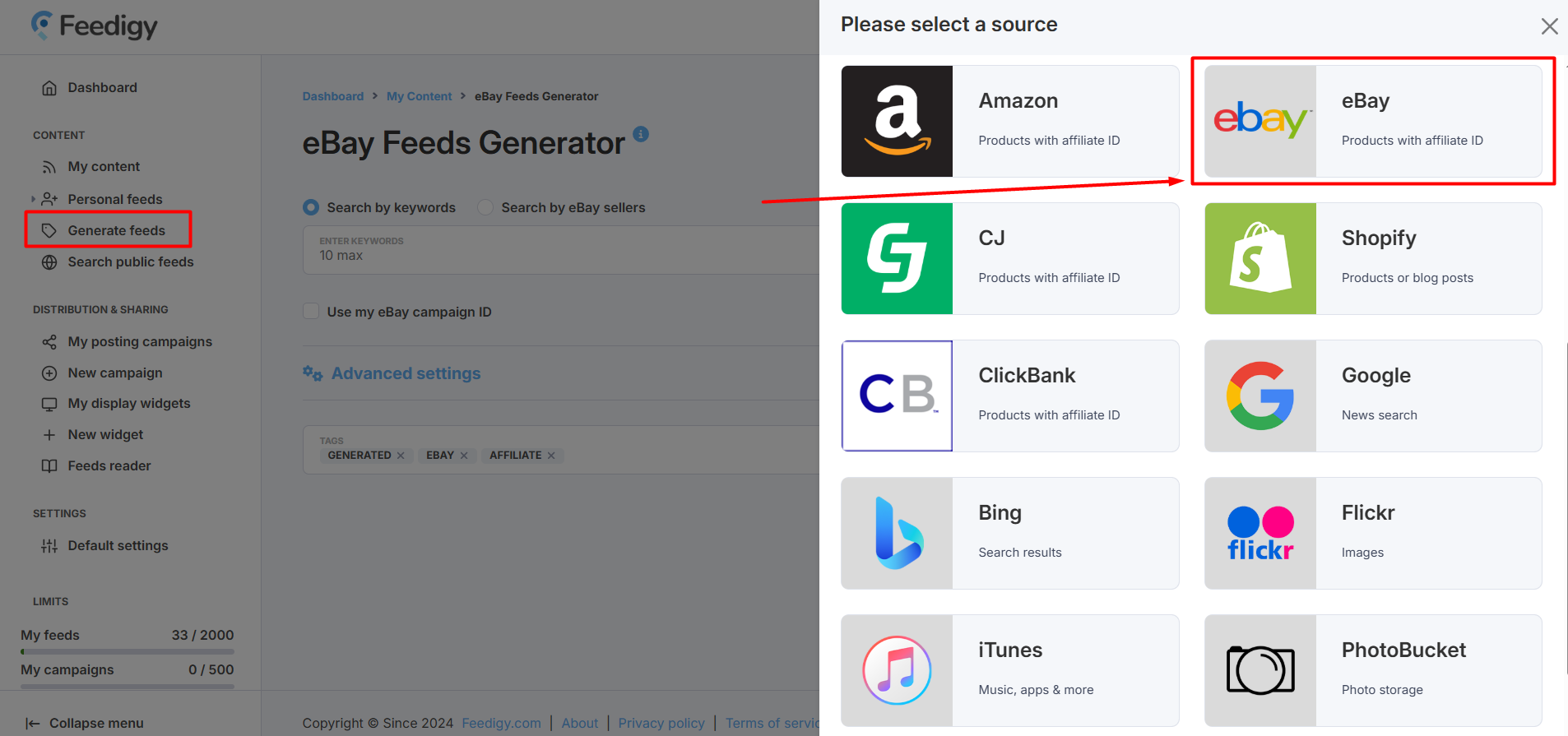
If you already have a Feedigy account, you need to press Generate feeds in the left navigation sidebar and select eBay as a content source:
Learn more about getting started with content discovery in Feedigy
^ to the top
Basic settings
eBay Feeds generator has Basic and Advanced settings. Advanced settings are optional and are used for more targeted search. You can use only basic settings to start searching for eBay products.
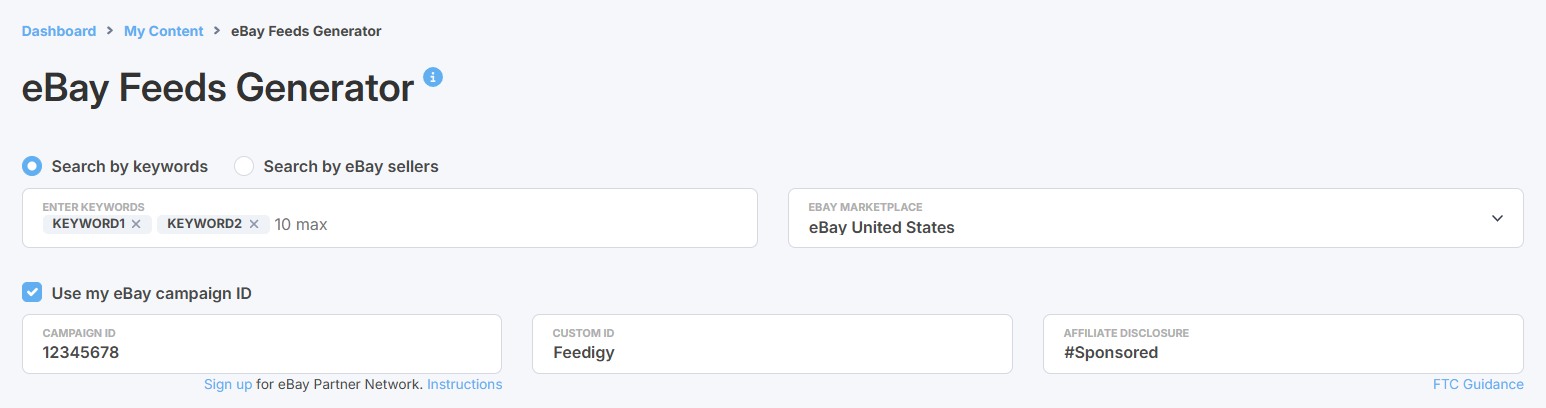
First, you choose if you wish to search for eBay products by keywords or by specific eBay sellers. You can specify up to 10 keywords or seller names at once. A separate eBay feed will be generated for each keyword or seller name.
eBay marketplace - you choose one of the eBay local markets to search for local listings.
Note: not all local marketplaces are supported at the moment.
To get your affiliate commissions for promoting eBay products you need to specify your eBay Campaign ID. Campaign ID - is a 10-digit number associated with your eBay campaign. It is automatically embedded into product links to track clicks and sales. Learn more about eBay campaigns.
If you don't intend to promote eBay products or don't have an eBay affiliate account, you can uncheck the Use my eBay campaign ID option and our service's default credentials will be used instead.
Custom ID - an alphanumeric identifier you create to identify your traffic. It is optional, you can leave this field empty if you don't want to use a custom ID.
Affiliate disclosure - to comply with US Federal Trade Commission rules, we encourage you to use affiliate disclosure when you make a post with affiliate products on your websites or social media. This option will automatically add an affiliate disclosure to all your eBay feed items, ensuring you’re always compliant.You can customize disclosure text, but please make sure you follow the FTC Guidance
^ to the top
Advanced settings
Advanced settings are optional and are used for more targeted searching.
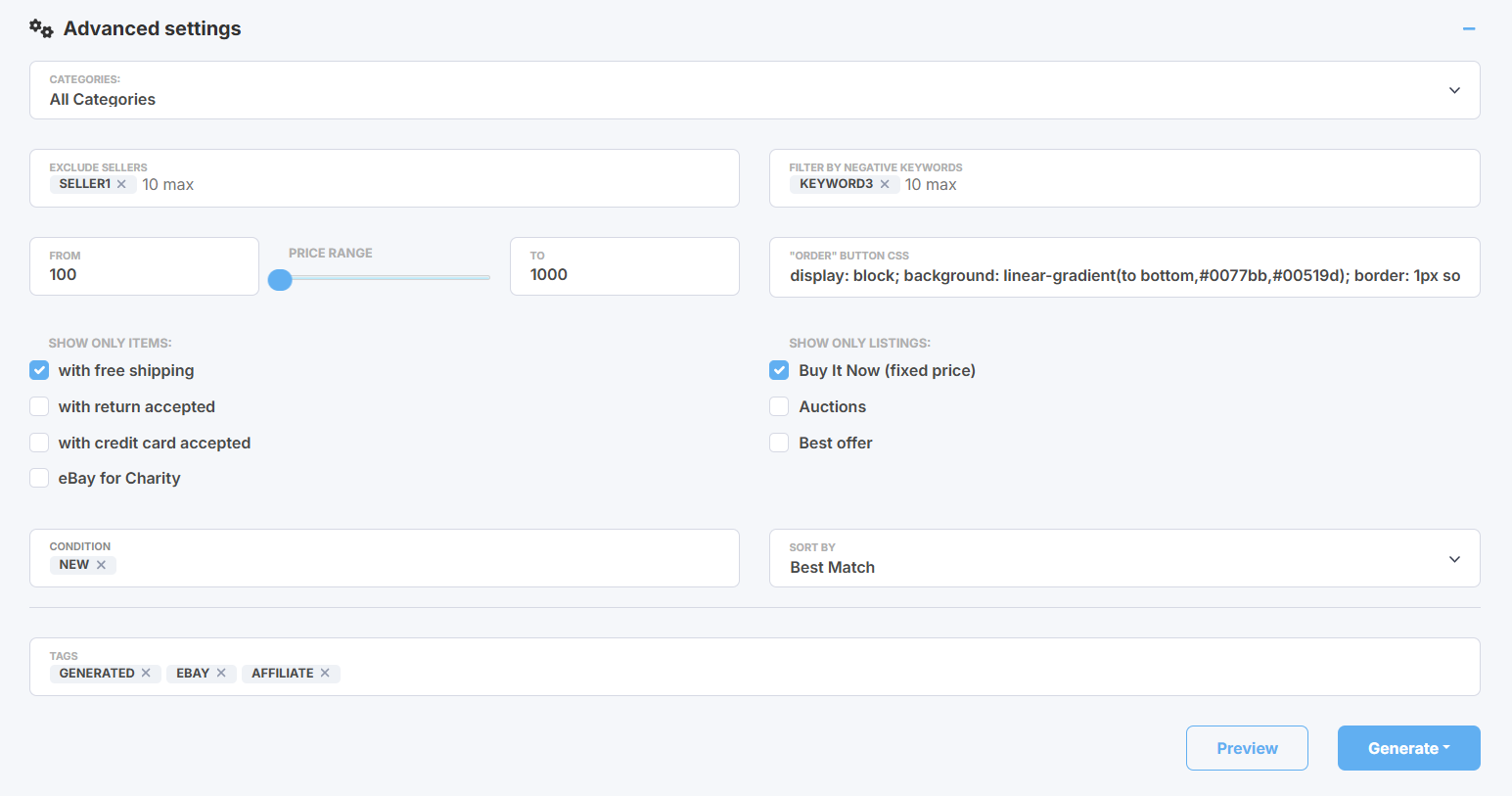
Categories - you can narrow down your search to a specific eBay category.
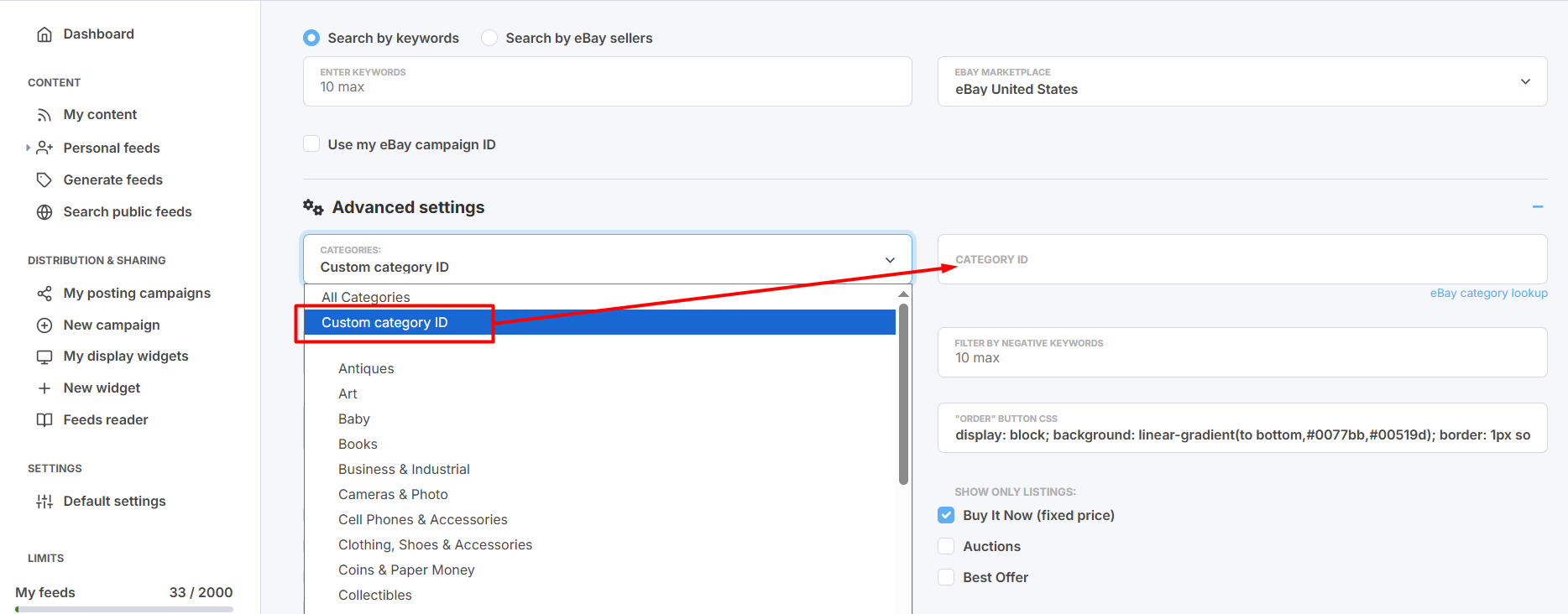
In the dropdown, you will find a list of eBay top-level categories. However, you can also specify any eBay category using the Custom category ID option. Find it at the bottom of the list. Click it and enter the needed category ID:
Learn how to look up a needed eBay category ID.
Exclude sellers - when you search for eBay products by keywords, you can specify one or several (up to 10) sellers to remove their products from the search results. Specify up to 10 seller names. Read what is eBay seller's name here.
Filter by negative keywords - for keyword search, you can also specify negative keywords. Products that mention any of the specified negative keywords will be removed from the search result.
Price range - you can limit your search results by a minimum and a maximum product price. Enter only integers.
"Order" button CSS - here you can edit CSS to change the look & feel of item's order button to match your website's design. Alternatively, you can remove this CSS completely and use custom CSS classes in the feed to style the button in your website's CSS: .btn-buy {...} . Read more about editing order buttonsYou can use one of the filters to search for products that have free shipping, return policy, or to search for Buy It Now (fixed price) products, auctions, best offers.
Additionally, you can specify products Conditions. Here a multiple-select is available.
Sort by - you can sort search results in your eBay feeds to show the most relevant products on the top:
- Best match
- Price: lowest first
- Price: highest first
- Time: newly listed
Generating eBay feeds.
Before generating your feed, please use the Preview option to make sure your feed displays products relevant to your search.
Also, you can specify tags for your feed that will appear in the My content table where all your generated feeds are automatically saved. This will help to search or filter your feeds there.
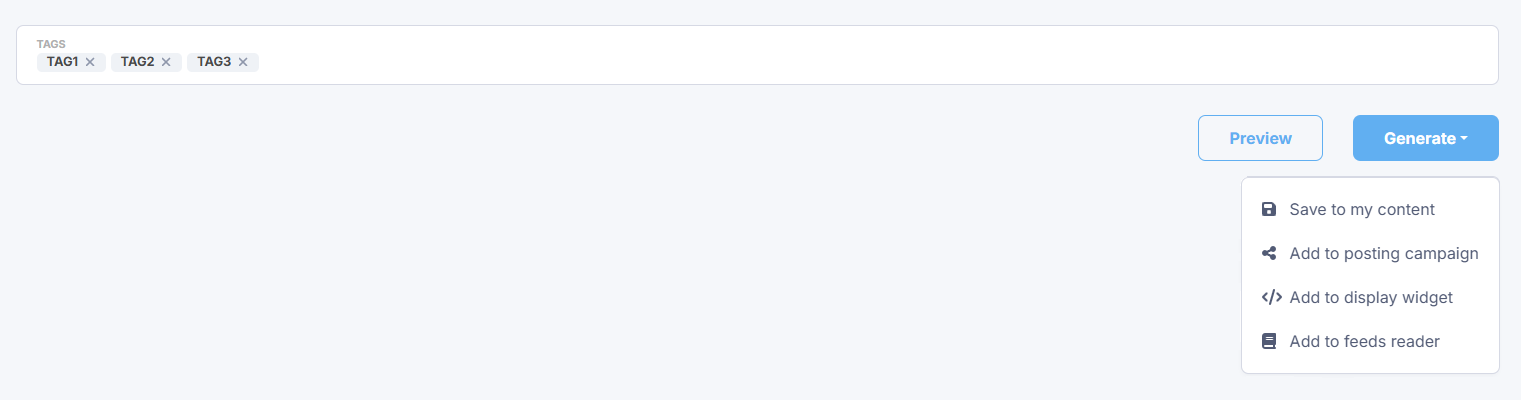
Press the Generate button. You have several options:
- Save to my content - simply save eBay feeds to My content vault.
- Add to posting campaign - add eBay feeds to an existing posting campaign or create a new campaign to start sharing content from eBay feeds to your blogs and social media.
- Add to a display widget - add your feeds to an existing display widget or create a new display widget to add a content block with eBay products to your website or blog.
- Add to feeds reader - add eBay feeds to your Feeds Reader to start following the latest updates or for further research.
Note: whatever option you choose, your new eBay feeds will be automatically saved to My content.
We will generate a separate eBay product feed for each specified search keyword or eBay seller in the basic settings.
^ to the top