

About X (Twitter) Feeds

Twitter Feeds allows you to generate self-updating content feeds with original tweets related to a specific keyword or from a specific Twitter user.
To use Twitter Feeds generator you need to sign up for any of the Feedigy membership plans. Number of X (Twitter) feeds you are able to generate and save also depends on your membership plan limit.Example of a Twitter feed:

Each X (Twitter) feed will contain up to 100 unique tweets.
Note: only tweets that are not older than 7 days will be shown in Twitter feeds.
A tweet will include text and media (image or video) if available.
Note: only native media added manually can be shown with tweets. Media pulled via external links will not be visible.
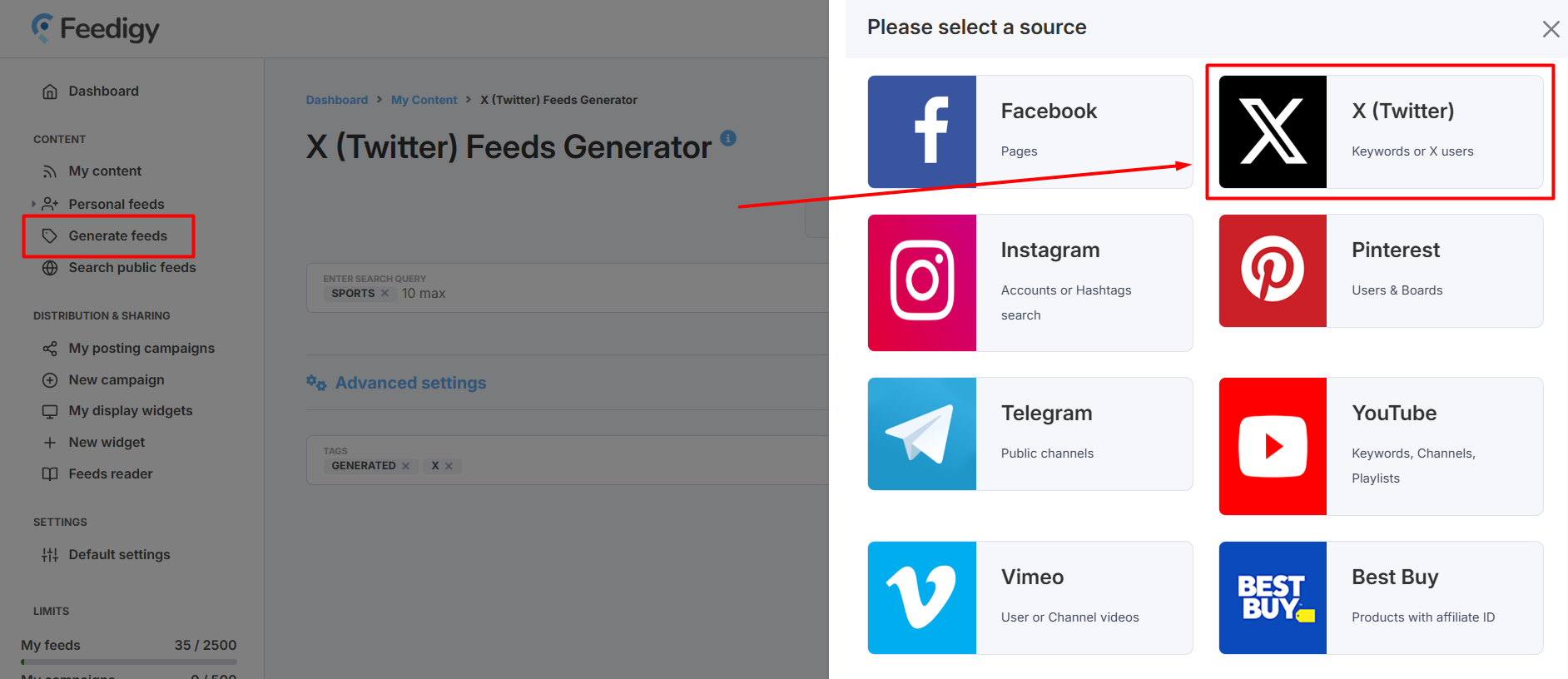
If you already have a Feedigy account, you need to press Generate feeds in the left navigation sidebar and select X as a content source:
Learn more about getting started with content discovery in Feedigy
^ to the topBasic settings
You can generate self-updating X (Twitter) feeds filled with tweets related to a specific keyword or a specific user.
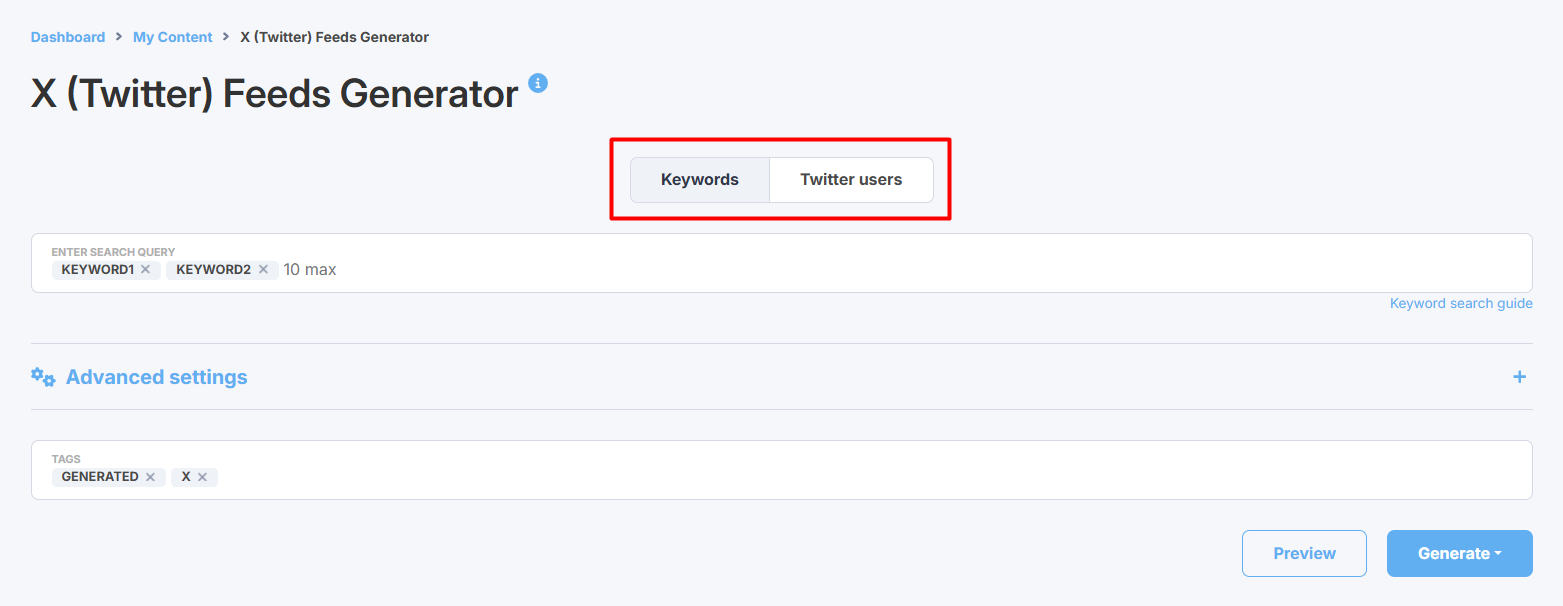
In the Basic settings, first, choose your search option: by keywords or by X (Twitter) users.
You can specify up to 10 keywords or X (Twitter) users at a time. A separate feed will be generated for each one.
X (Twitter) has an advanced search syntax and supports several search operators that will help enhance your keyword search. For more information, please read the X (Twitter) keyword search guide.
^ to the top
Advanced settings
Advanced settings are optional but highly recommended to achieve higher-quality search results.
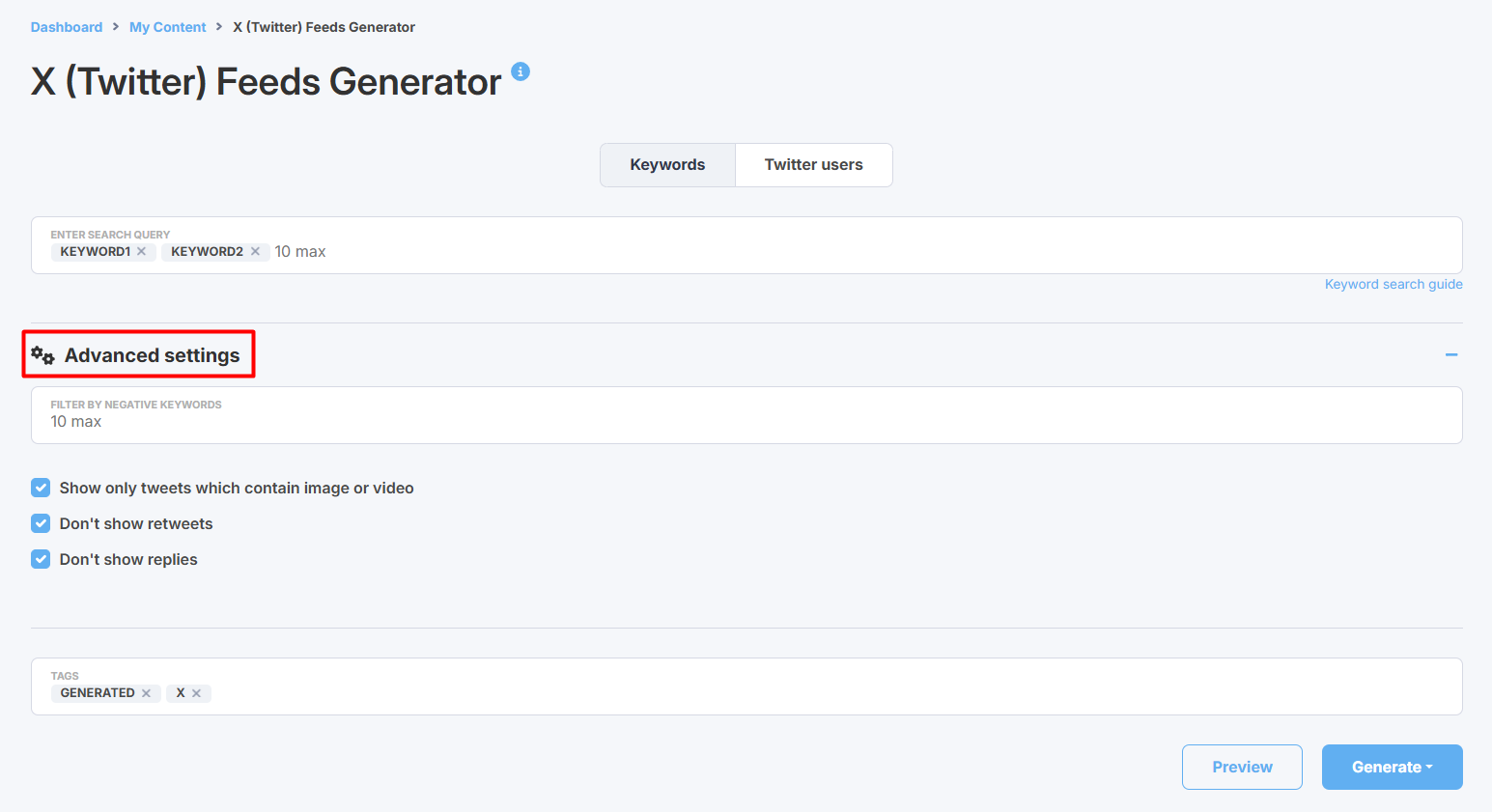
Filter by negative keywords - ignore any tweets that mention at least one of your specified keywords.
Show only tweets which contain image or video - show only tweets with an attached image or video.
Note: only native media added manually can be shown with tweets. Media pulled through links will not be visible.
Don't show retweets - filter out all retweets from search results
Don't show replies - filter out all replies from search results
^ to the top
Generating Twitter feeds
Before generating your feed, please use the Preview option to make sure your feed displays products relevant to your search.
Also, you can specify tags for your feed that will appear in the My content table where all your generated feeds are automatically saved. This will help to search or filter your feeds there.
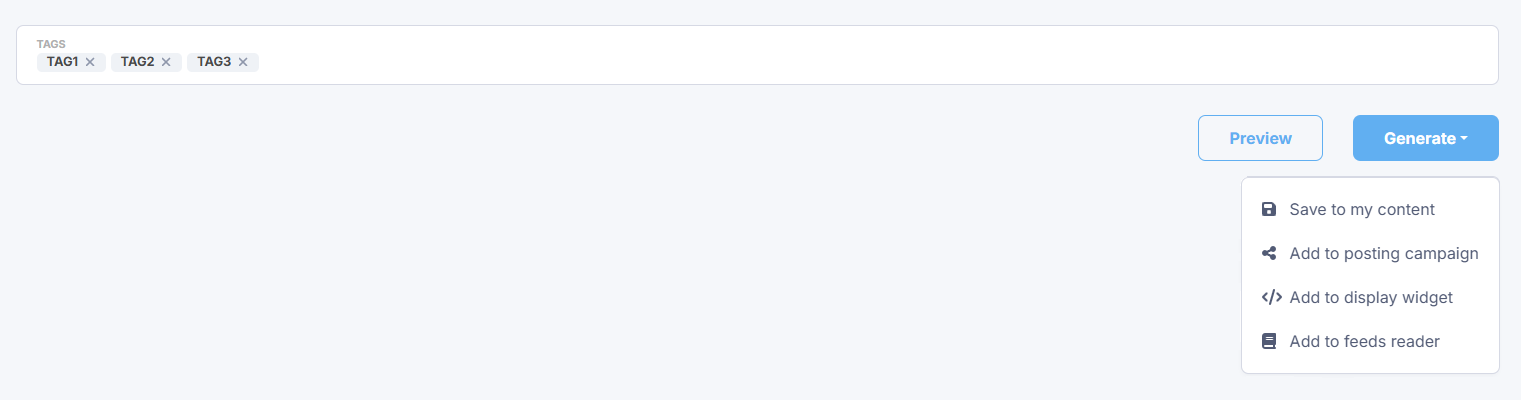
Press the Generate button. You have several options:
- Save to my content - simply save X (Twitter) feeds to My content vault.
- Add to posting campaign - add X (Twitter) feeds to an existing posting campaign or create a new campaign to start sharing content from X (Twitter) feeds to your blogs and social media.
- Add to a display widget - add your feeds to an existing display widget or create a new display widget to add a content block with X (Twitter) tweets to your website or blog.
- Add to feeds reader - add X (Twitter) feeds to your Feeds Reader to start following the latest updates or for further research.
Note: whatever option you choose, your new X (Twitter) feeds will be automatically saved to My content.
We will generate a separate X (Twitter) feed for each specified search keyword or X (Twitter) user in the basic settings.