

About CJ Affiliate Feeds

CJ Affiliate Feeds generator allows you to create self-updating content feeds with recent listings from your favorite CJ Affiliate advertisers.
Your CJ Affiliate credentials will be automatically embedded into product links, making it incredibly simple for you to promote listings on your blog or social media and earn fair commissions.
Please remember about the necessity to include an affiliate disclosure on any pages or posts that feature affiliate products. Affiliate disclosure is a statement that makes it clear there is an affiliate relationship between a publisher and a brand. Read more about affiliate disclosure
To use CJ Affiliate Feeds generator you need to sign up for any of the Feedify membership plans.
Before you start using the CJ Affiliate Feeds generator, you need to obtain CJ Affiliate personal credentials that include: company ID, website ID and personal access token. Please read our quick guide on how to obtain CJ Affiliate credentials.
If you already have a Feedigy account, you need to press Generate feeds in the left navigation sidebar and select CJ Affiliate as a content source:
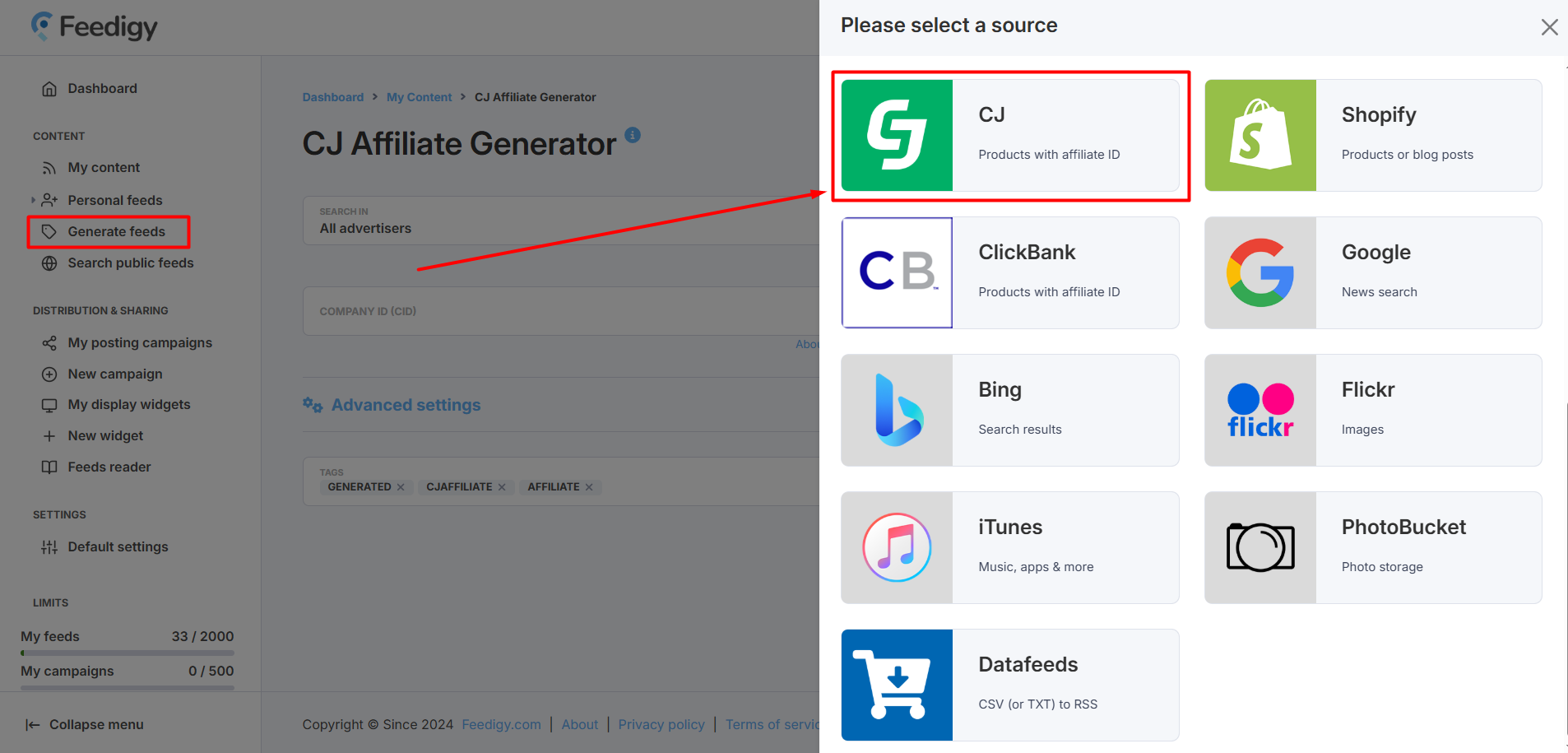
Learn more about getting started with content discovery in Feedigy
^ to the top
Basic settings
The CJ Affiliate Feeds generator is divided into two sections: Basic and Advanced settings. The Basic settings contain all the mandatory fields required to generate a feed, while the optional Advanced settings allow you to refine your search for more targeted results.
You must complete all fields in this section to generate a feed: Personal Access Token, Company ID, and Website ID. Here is a quick guide on CJ Affiliate credentials.
You must also choose your search scope: either search for products from all CJ Affiliate advertisers or only from advertisers who have approved you for their affiliate programs (My Advertisers).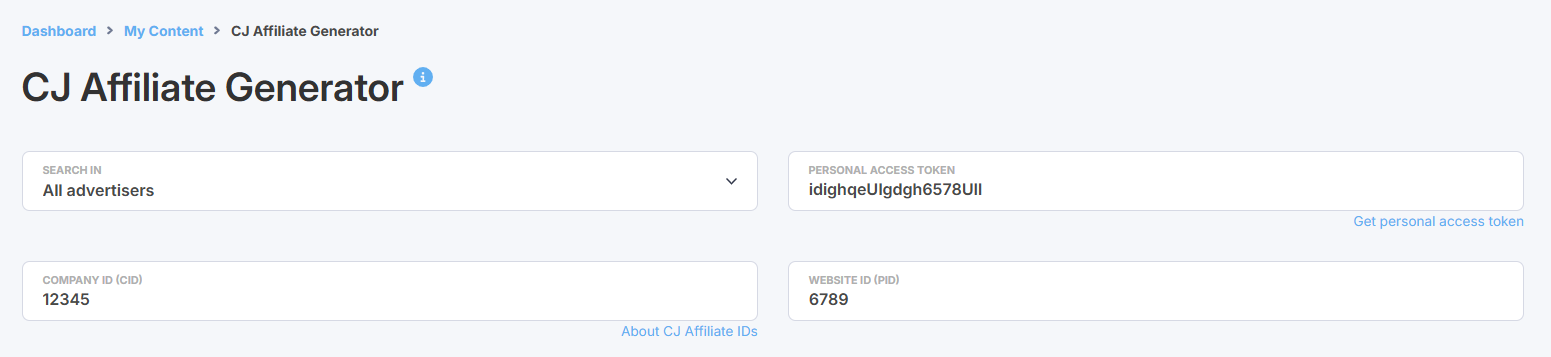
^ to the top
Advanced settings
These optional settings help you narrow your search and customize your feed.
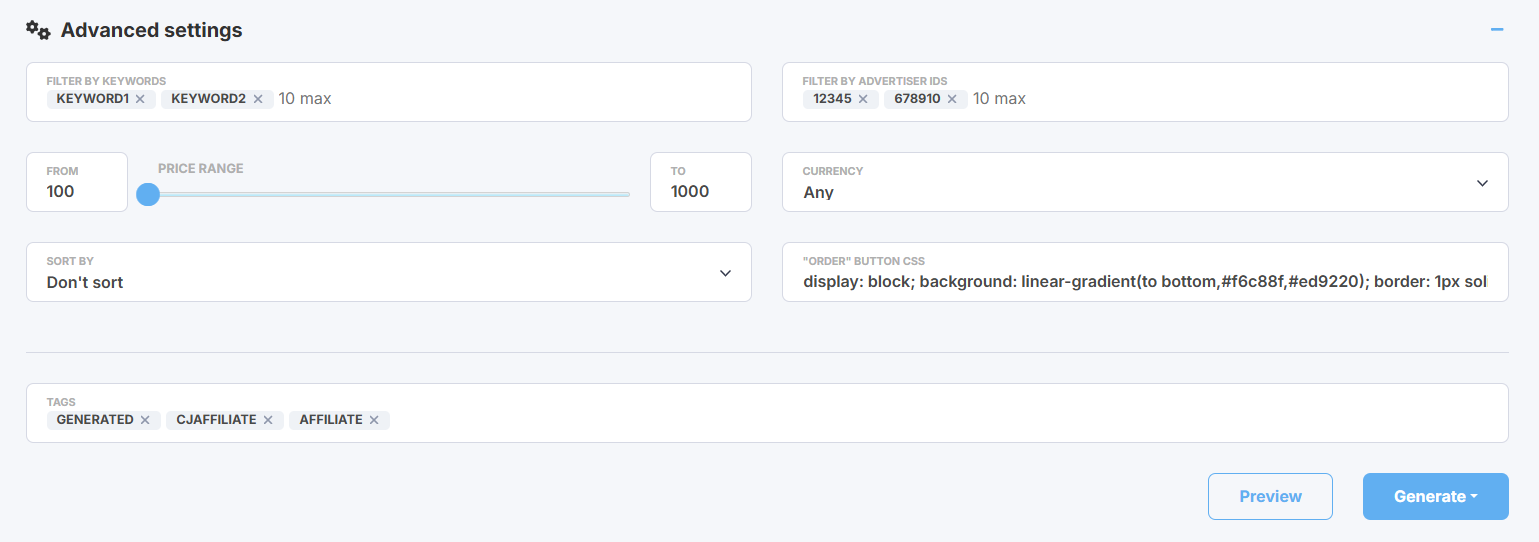
Filter by advertiser IDs - narrow your search to one or more specific advertisers using their unique IDs. The feed will only display products from the advertisers you specify.
Price range - limit your search results by setting a minimum and maximum product price. Please enter whole numbers only.
Currency - select only products listed in a specific currency.
Sort by - arrange the products in your feed by either the lowest or highest price.
"Order" button CSS - here you can edit CSS to change the look & feel of item's order button to match your website's design. Alternatively, you can remove this CSS completely and use custom CSS classes in the feed to style the button in your website's CSS: .btn-buy {...} Read more about editing order buttons
^ to the top
Generating CJ Affiliate feeds
Before you generating your feed, please use the Preview option to make sure your feed displays products relevant to your search.
Also, you can specify tags for your feed that will appear in the My content table where all your generated feeds are automatically saved. This will help to search or filter your feeds there.
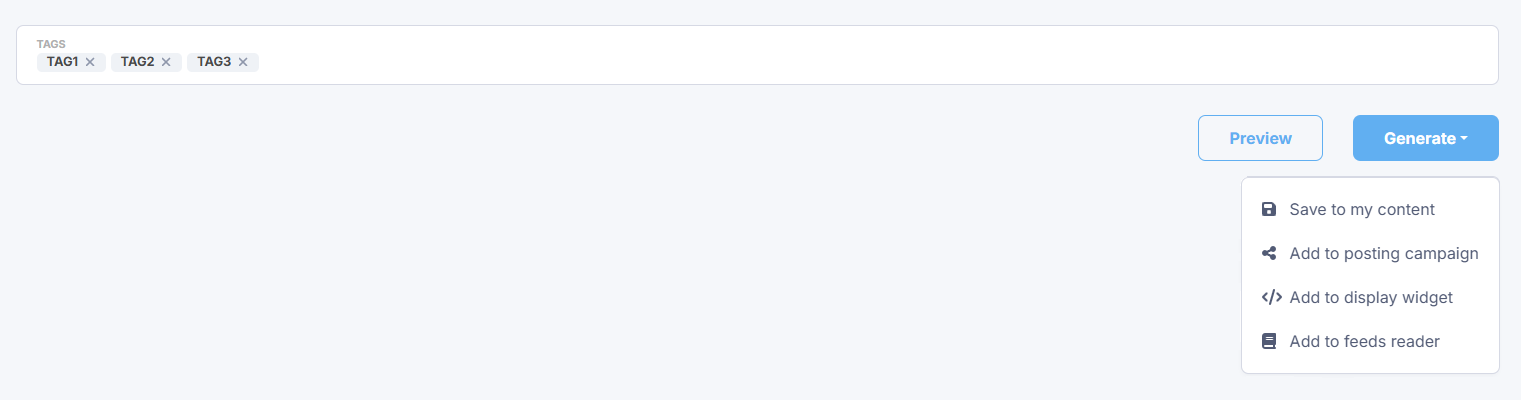
Press the Generate button. You have several options:
- Save to my content - simply save CJ Affiliate feeds to My content vault.
- Add to posting campaign - add CJ Affiliate feeds to an existing posting campaign or create a new campaign to start sharing content from CJ Affiliate feeds to your blogs and social media.
- Add to a display widget - add your feeds to an existing display widget or create a new display widget to add a content block with CJ Affiliate products to your website or blog.
- Add to feeds reader - add CJ Affiliate feeds to your Feeds Reader to start following the latest updates or for further research.
Note: whatever option you choose, your new CJ Affiliate feeds will be automatically saved to My content.
We will generate a separate CJ Affiliate product feed for each specified advertiser.