


About Amazon Feeds

Your Amazon affiliate ID (Associate ID) can be automatically embedded into product links and images.
Please remember about the necessity to include an affiliate disclosure on any pages or posts that feature affiliate products. Affiliate disclosure is a statement that makes it clear there is an affiliate relationship between a publisher and a brand. Read more about affiliate disclosure
Example of an Amazon feed item:

To use the Amazon Feeds generator you need to sign up for any of the Feedigy membership plans.
Before you start using the Amazon Feeds generator you need to sign up for Amazon affiliate program and Amazon product advertising API to obtain access keys to obtain access keys. See a quick guide.
If you already have a Feedigy account, you need to press Generate feeds in the left navigation sidebar and select Amazon as a content source:
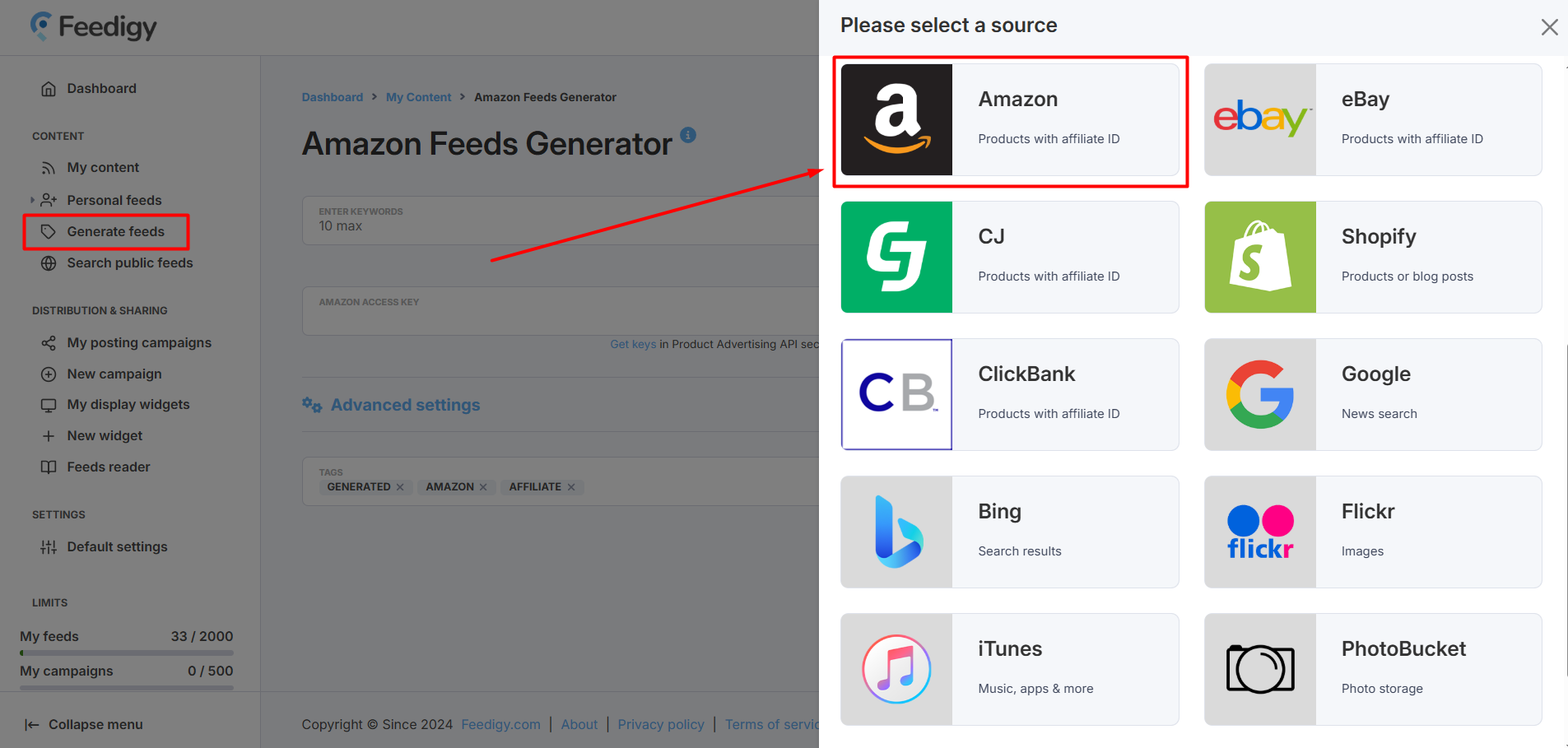
Learn more about getting started with content discovery in Feedigy
^ to the topBasic settings
Amazon Feeds generator has Basic and Advanced settings. Advanced settings are optional and are used for more targeted search. You can use only basic settings to start searching for Amazon products.
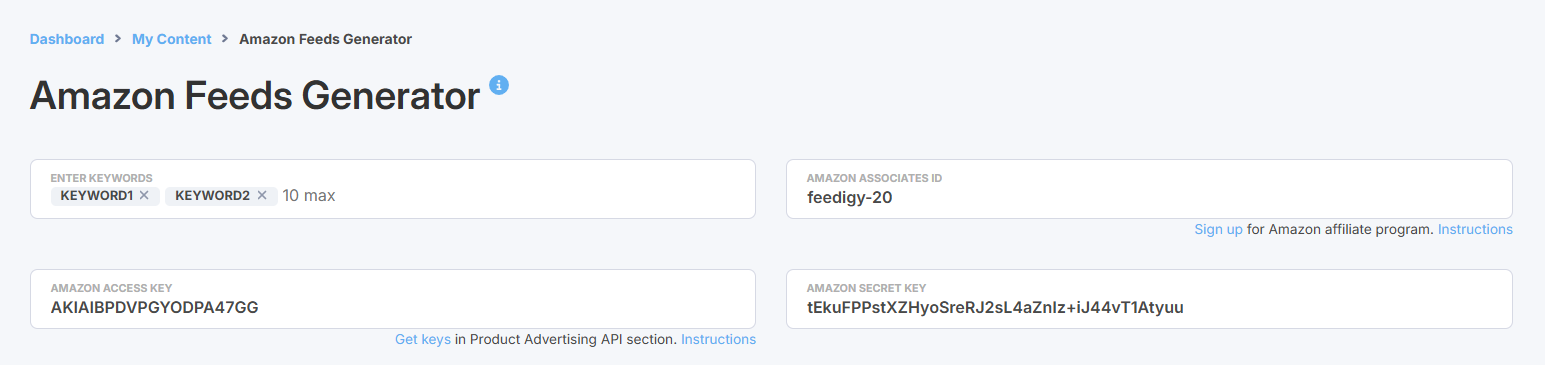
In the Basic settings, you have to Enter one or several keywords. Up to 10 keywords are allowed. A separate Amazon product feed will be generated for each specified keyword.
Also, you need to specify your Amazon affiliate credentials. Affiliate credentials allow you to promote Amazon products for commissions. Your affiliate ID will be automatically embedded into all product links.
Advanced settings
Advanced settings are optional and are used for more targeted searching.
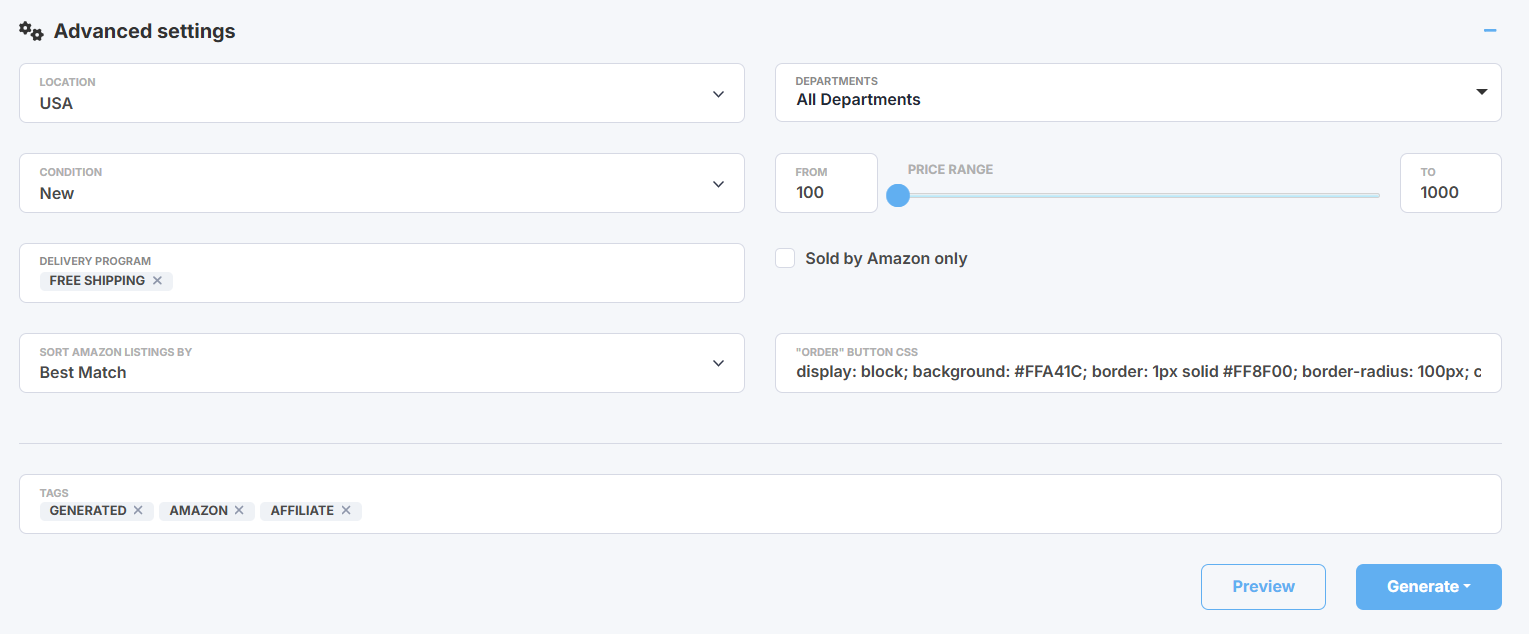
Location - select a local Amazon store to narrow your search to that specific region.
Note: you have to be registered with the corresponding local Amazon Associates program to generate affiliate feeds for that store.
Department - filter your search by a top-level Amazon department. You can only select one at a time, which will exclude results from all other departments. To search everywhere, simply choose "All Departments".
Condition - filter for products with a specific condition (e.g., New, Used).Price range - set a minimum and maximum price to filter your results. Please enter whole numbers only.
Delivery program - this filter shows only items eligible for specific delivery programs. For example, selecting "Prime" will only return products that are Prime-eligibl. Note: search requests with a particular delivery program may result in 0 items if any of the specified Delivery Programs is not supported in the target Amazon marketplace.
- Amazon Global - for items that feature international shipping.
- Free Shipping - for items that feature a free shipping option.
- Fulfilled By Amazon - (FBA) indicates that products are stored, packed, and shipped by Amazon.
- Prime - for products eligible for the Amazon Prime program.
Sort Amazon listings by - arrange the products in your feed in a specific order:
- Best match - displays the most relevant products first (default).
- Featured - prioritizes featured products with a higher rank.
- Price: low to high - starts with the lowest-priced products.
- Price: high to low - starts with the highest-priced products.
- Avg. customer reviews - sorts products by their average customer rating, from highest to lowest.
- Newest arrivals - displays the most recently added products first.
"Order" button CSS - here you can edit CSS to change the look & feel of item's order button to match your website's design. Alternatively, you can remove this CSS completely and use custom CSS classes in the feed to style the button in your website's CSS: .btn-buy {...} . Read more about editing order buttons
Generating Amazon feed
Before you generating your feed, please use the Preview option to make sure your feed displays products relevant to your search.
Also, you can specify tags for your feed that will appear in the My content table where all your generated feeds are automatically saved. This will help to search or filter your feeds there.
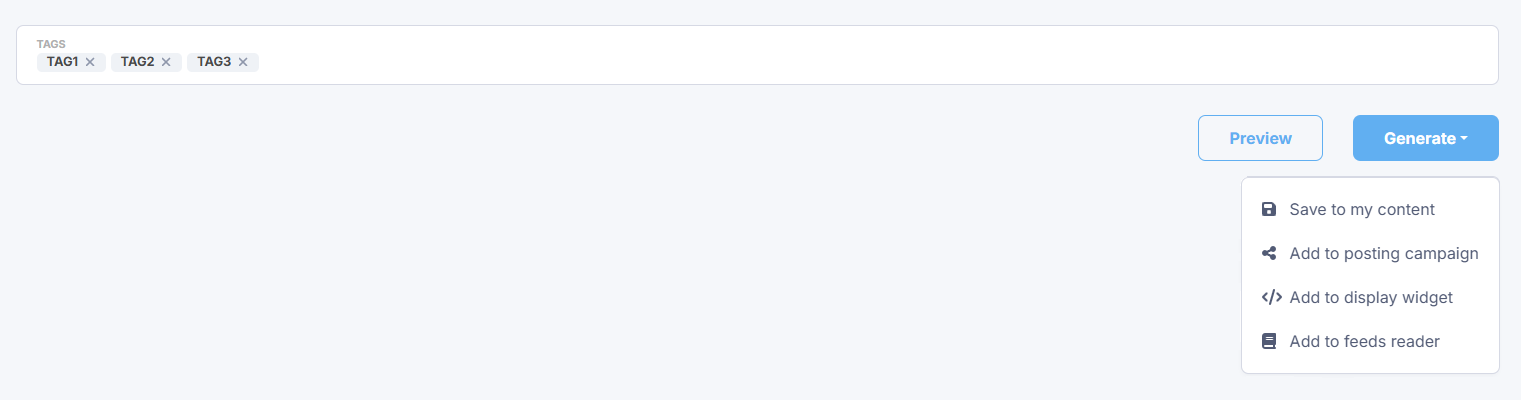
Press the Generate button. You have several options:
- Save to my content - simply save feeds to My content vault.
- Add to posting campaign - add feeds to an existing posting campaign or create a new campaign to start sharing content from Amazon feeds to your blogs and social media.
- Add to a display widget - add your feeds to an existing display widget or create a new display widget to add a content block with Amazon feeds to your website or blog.
- Add to feeds reader - add feeds to your Feeds Reader to start following the latest updates or for further research.
Note: whatever option you choose, your new Amazon feeds will be automatically saved to My content.
We will generate a separate Amazon product feed for each specified search keyword in the basic settings.